Open-source browser agent · Updated Aug 6, 2026
Give your coding agent browser control.
Browser Use can open pages, click buttons, type, fill forms, extract data, and test websites. Here is the official repository and the exact setup prompt.
What it is
A browser your agent can actually use.
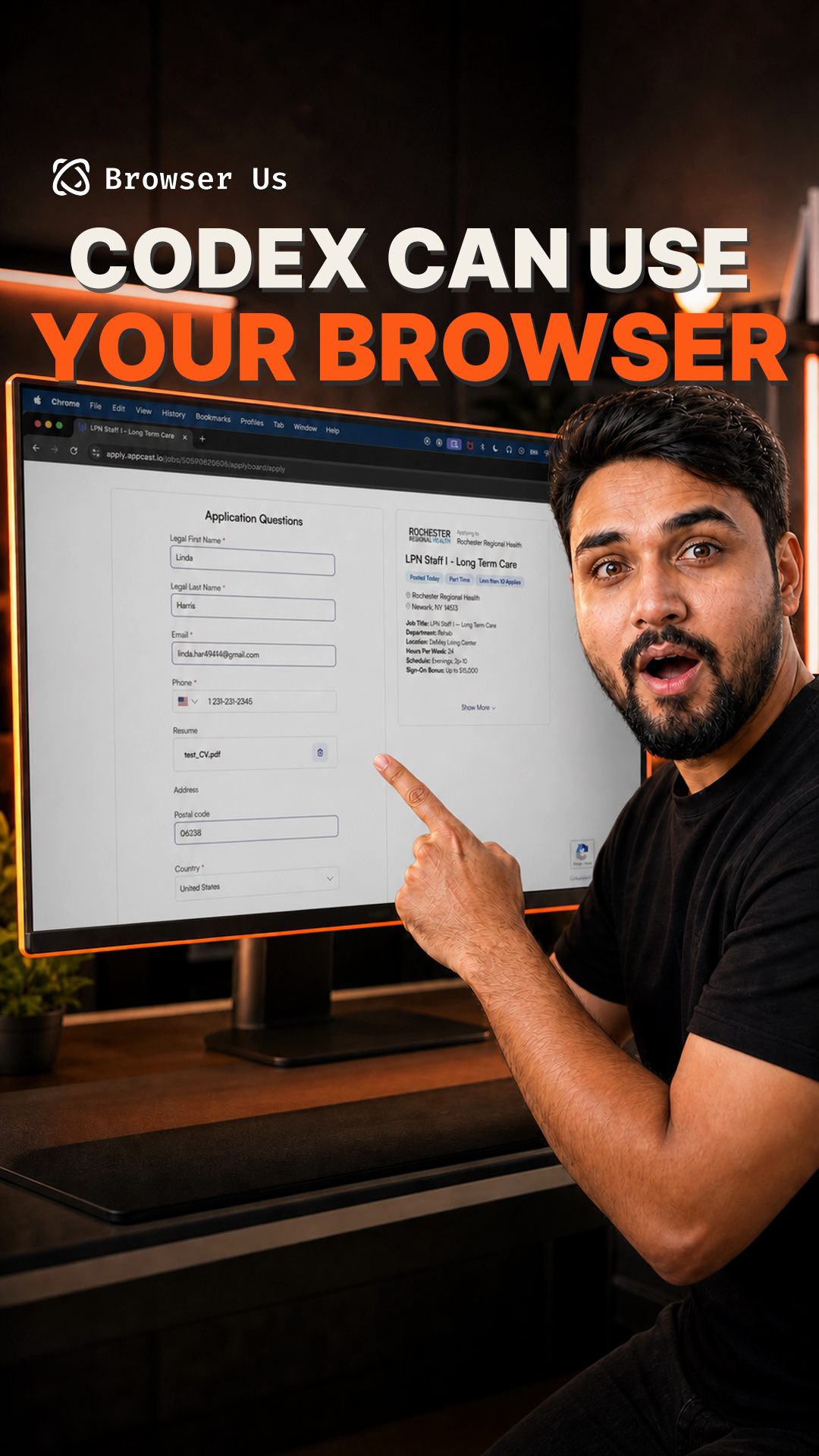
Browser Use gives coding agents a direct way to work inside a real browser. Instead of only telling you what to click, the agent can perform the steps.
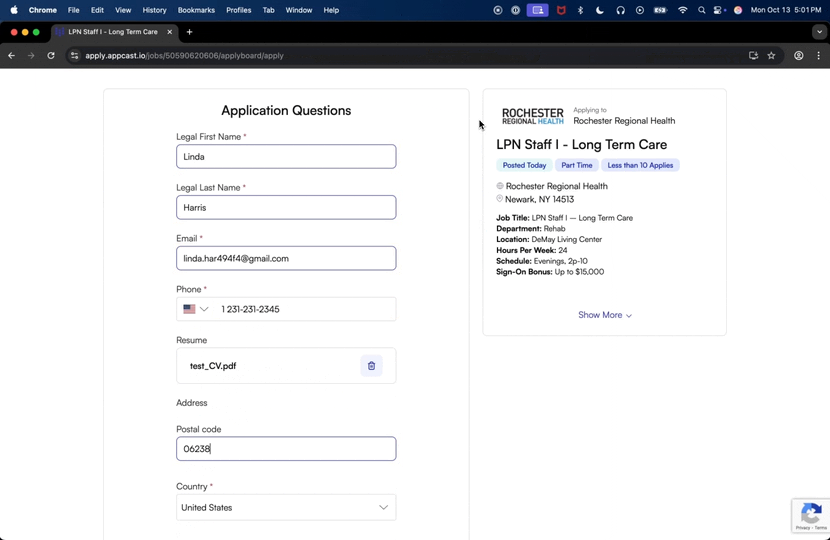
Its demos show it completing a job application, exporting website data into a CSV, and QA-testing a local app. The open-source repository is MIT licensed and had more than 108,000 GitHub stars when this guide was published.
- 01Navigate and clickOpen pages, follow links, click controls, and move through multi-step tasks.
- 02Type and fill formsEnter information, select options, upload files, and submit forms after you approve the task.
- 03Extract structured dataCollect information from websites and save the result in formats such as CSV.
- 04Test websitesUse it for local QA, bug discovery, usability checks, and repeatable browser flows.
Fast setup
Paste one prompt into your coding agent.
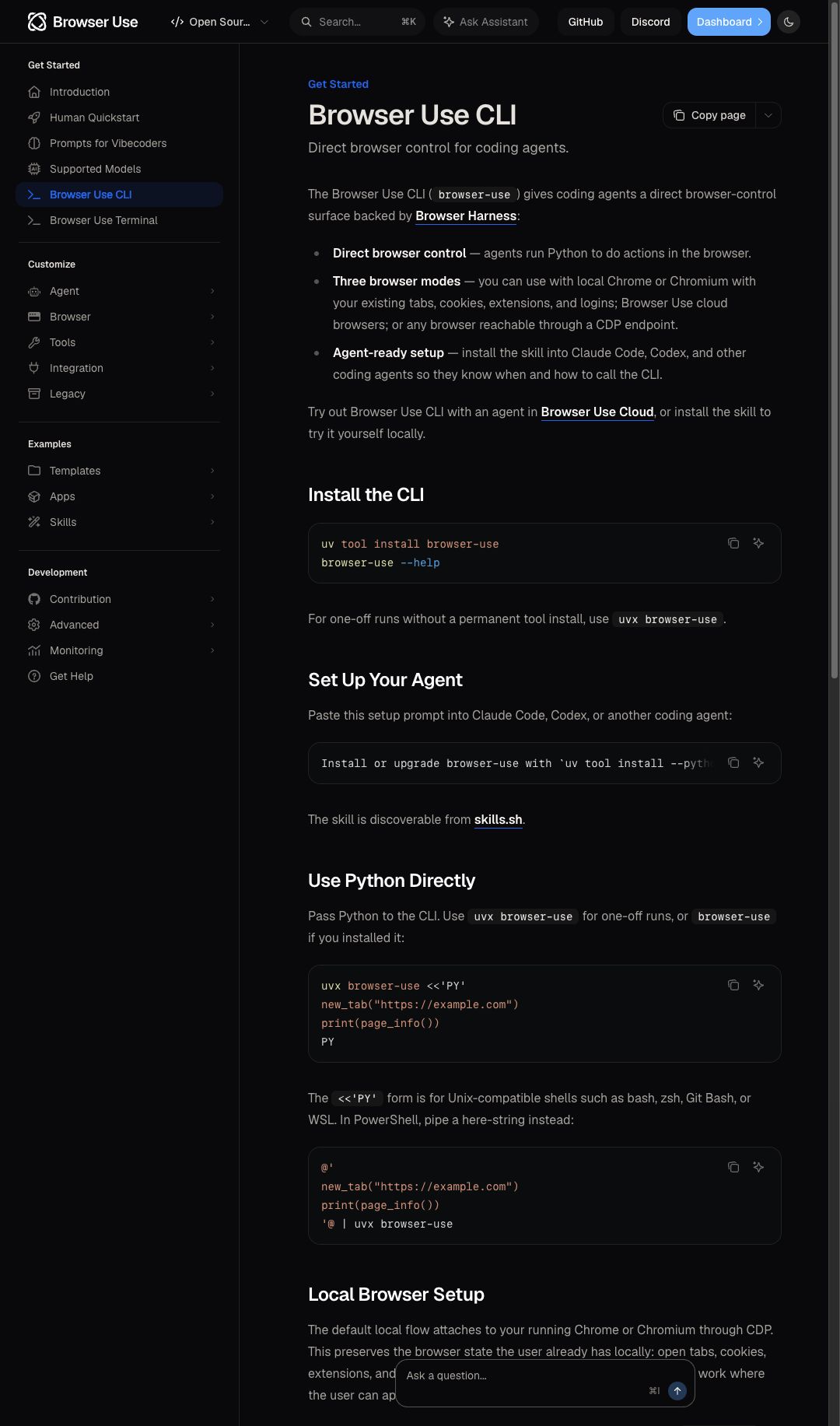
This is the current setup prompt published in the official Browser Use README. Paste it into Codex, Claude Code, Cursor, or another supported coding agent.
Install or upgrade browser-use to the latest stable version with uv using Python 3.12, run `browser-use skill install` to register the skill, and connect it to my browser. If setup or connection fails, follow https://github.com/browser-use/browser-harness/blob/main/install.md.
Verified against the official repository on August 6, 2026.
- Paste the promptLet your coding agent install the current stable version and register the Browser Use skill.
- Approve Chrome accessIf Chrome asks whether to allow remote debugging, approve it and retry the connection.
- Give it a small taskStart with a low-risk test such as opening a public page and summarising its visible contents.
- Increase the scope carefullyMove to forms, local QA, or logged-in workflows only after the basic connection works.
Existing Chrome session
It can use the browser you already have open.
The local flow can connect to Chrome or Chromium and preserve your open tabs, cookies, extensions, and logged-in sessions.
That is useful because you do not have to sign in again inside a separate automation browser. It also means you should treat browser access seriously.
Use a clear permission boundary. Ask before accessing private tabs, accounts, messages, payment pages, or personal data. Watch the first run and avoid destructive actions until you trust the workflow.
Is Browser Use free?
The repository and its core code are open source under the MIT license. Connecting to local Chrome does not itself require a Browser Use API key. Your chosen AI model may still have usage costs, and Browser Use Cloud is an optional paid service.
A good first task
Open the public homepage of my local app, test the main navigation links, and report any broken links or visible layout problems. Do not submit forms, change data, or access private accounts.
Official resources
Everything you need.
- Browser Use GitHub repository
Source code, README, demos, and releasesOpen ↗ - Browser Use CLI documentation
Local Chrome, cloud browsers, and agent setupOpen ↗ - Browser Harness installation help
Connection troubleshooting and Chrome permission stepsOpen ↗ - MIT license
The repository's open-source licenseOpen ↗