From the reel · Local AI

10 AI tools that run on your own computer.

Free alternatives to ChatGPT, ElevenLabs and Midjourney that run on your laptop: chat, voice, images, transcription and documents. Your files stay on your machine.

See the 10 tools

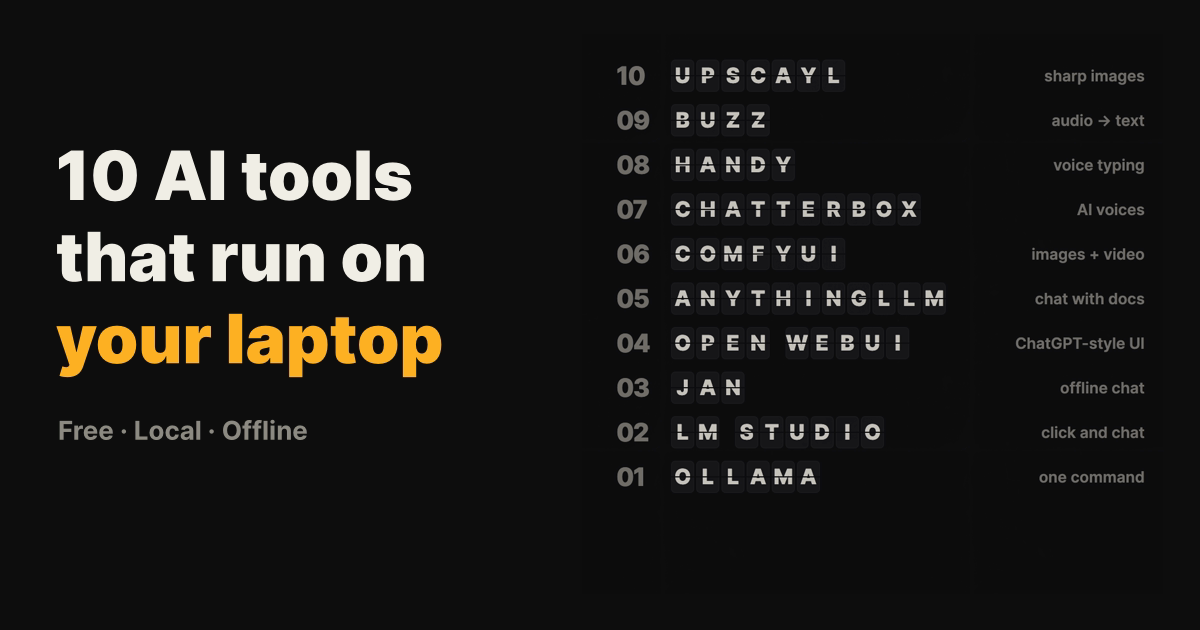
Split-flap board listing ten AI tools that run on your laptop
Same order as the Reel (10 → 1), with install commands below.

Local means private.
It also means your hardware.

Every tool here runs the AI model on your own computer instead of a company’s server. That keeps your documents, voice and images on your machine, and most of them keep working without internet once a model is downloaded.

The trade-off is memory. Bigger models need more RAM (and a GPU helps a lot), so start with a small model and move up only when you need better answers.

The list from the Reel

Pick the tool for the job.

Reel order: 10 → 1
Links, licenses and stars checked 28 September 2026.

“Free” means the software is free to download and run locally. Some tools also sell optional cloud plans, and your laptop still has to be powerful enough for the model you pick.

#10Image upscaling

Upscayl

Desktop app that upscales blurry or low-resolution images with AI models, fully on your machine.

Try it whenYou have an old photo, a small screenshot or a soft product image you need sharper.

Install, first task, and access
Drop in one low-resolution photo, pick the General Photo model, and compare the before/after slider at 4×.

Download from upscayl.org (Windows, macOS, Linux). Linux users can also use Flatpak, Snap or the AppImage.

GitHub · AGPL-3.0

Access: Free and open source. Needs a Vulkan-compatible graphics card; many integrated GPUs will not work.

#09Transcription

Buzz

Transcribes and translates audio and video offline using OpenAI’s Whisper models, and exports subtitles.

Try it whenYou need a transcript or subtitle file for an interview, lecture or your own video without uploading it anywhere.

Install, first task, and access
Import a 2-minute clip, pick a small Whisper model first, and export the result as an SRT subtitle file.

Download the installer from the project’s SourceForge page. The app is unsigned, so your OS may show a warning on first launch.

GitHub · MIT

Access: Free and offline. Larger Whisper models are more accurate but slower and need more memory.

#08Voice typing

Handy

Press a shortcut, speak, release, and Handy types what you said into whatever text field is focused. Works completely offline.

Try it whenYou want dictation in your editor, browser or chat app without sending your voice to a cloud service.

Install, first task, and access
Set the shortcut, try the Parakeet V3 model on CPU, and dictate one paragraph into a notes app.

brew install --cask handy on macOS, winget install cjpais.Handy on Windows, or download from handy.computer.

GitHub · MIT

Access: Free and offline. Whisper models use your GPU when available; Parakeet V3 is optimised for CPU.

#07Text to speech

Chatterbox

Open-source text-to-speech models from Resemble AI with emotion control and voice cloning from a short reference clip.

Try it whenYou need narration, a voiceover draft or a voice for an app prototype.

Install, first task, and access
Generate one sentence with the default voice, then try a 5-second reference clip of your own voice.

pip install chatterbox-tts, then run the Python example in the README. Choose device="cuda", "mps" (Apple Silicon) or "cpu".

GitHub · Hugging Face · MIT

Access: Free and open source. A GPU makes generation much faster. Every output carries Resemble’s imperceptible Perth watermark. Only clone voices you have permission to use.

#06Images and video

ComfyUI

Node-based interface for image and video generation models. You wire up the pipeline, and it runs locally.

Try it whenYou want Midjourney-style image generation or video models without a subscription, and control over every step.

Install, first task, and access
Install the desktop app, load the default template workflow, and generate one 1024×1024 image.

Download the ComfyUI desktop app (Windows, macOS, Linux), or use the portable install from GitHub.

GitHub · GPL-3.0

Access: Free and open source. The project says big models can run with as little as 4 GB VRAM + 8 GB RAM using weight streaming; more VRAM is still much faster.

#05Chat with documents

AnythingLLM

All-in-one desktop app to chat with your PDFs and documents, with built-in agents and a local vector database.

Try it whenYou want answers from your own notes, contracts or research papers without uploading them to a chatbot.

Install, first task, and access
Create a workspace, drop in one PDF, and ask it to summarise the document with page references.

Download the desktop app from anythingllm.com (Mac, Windows, Linux). A Docker version adds multi-user support.

GitHub · MIT

Access: Free and open source. Runs locally by default; you can also connect cloud model providers with your own keys.

#04Chat interface

Open WebUI

Self-hosted, ChatGPT-style web interface for Ollama and OpenAI-compatible models, built to run entirely offline.

Try it whenYou already run models with Ollama and want a proper chat screen with history, files and multiple models.

Install, first task, and access
Start it next to Ollama, open localhost in your browser, and pick the model you already pulled.

Python 3.11: pip install open-webui then open-webui serve. Docker instructions are in the README.

GitHub · Open WebUI License (BSD-3 based, with a branding clause)

Access: Free to self-host. It is an interface, so pair it with Ollama or another model server.

#03Offline chat

Jan

Open-source ChatGPT alternative that downloads and runs models 100% offline on your computer.

Try it whenYou want a simple, private chat app on your laptop without touching a terminal.

Install, first task, and access
Install Jan, download one small model from its hub, then turn off Wi-Fi and ask it a question.

Download from jan.ai (Windows, macOS, Linux).

GitHub · Apache-2.0

Access: Free and open source. Start with small models if your laptop has 8–16 GB of RAM.

#02Model runner

LM Studio

Desktop app to discover, download and chat with local models using llama.cpp and MLX. The app is now called LM Studio Bionic.

Try it whenYou want to try many open models quickly with a friendly UI and a local API server.

Install, first task, and access
Search for a small model in the app, download it, and chat. Then enable the local server to use it from code.

Download from lmstudio.ai. The lms CLI is open source (MIT).

Pricing · System requirements

Access: The Free plan runs local models. The desktop app itself is not open source; paid plans add cloud models. macOS needs Apple Silicon and macOS 14+, with 16 GB+ RAM recommended.

#01Model runner

Ollama

Run open models from your terminal with one command, with a local API that other apps (like Open WebUI) can use.

Try it whenYou are a developer and want a local model you can script, call from code, or plug into other tools.

Install, first task, and access
Install Ollama, run a small model, and ask it to explain a function from your own codebase.

macOS/Linux: curl -fsSL https://ollama.com/install.sh | sh, then ollama run gemma4 (the Reel used ollama run llama3.2). Windows: download from ollama.com.

GitHub · Model library · MIT

Access: Free and open source. Pick a model size that fits your RAM; the model library lists the size of each version.

Will it run on my laptop?

Start small. Scale up.

8 GB RAM

Small models only

Stick to small chat models and short context. LM Studio notes 8 GB Macs can work with smaller models. Upscayl, Handy and Buzz’s smaller models are the easiest wins here.

16 GB RAM

The comfortable baseline

LM Studio recommends 16 GB or more. Mid-size chat models, document chat in AnythingLLM and most transcription work well.

GPU

Images, video and voice

ComfyUI and Chatterbox are much faster with a dedicated GPU (or Apple Silicon). ComfyUI says big models can run from 4 GB VRAM + 8 GB RAM, just slower.

Install commands

Install one tool, then test offline.

01

Pick one job

Chat? Start with Jan or Ollama. Voice typing? Handy. Old photos? Upscayl. Do not install all ten on day one.

02

Download a small model

Choose the smallest model the app suggests. Check its size against your free RAM before downloading.

03

Turn off Wi-Fi

Once the model is downloaded, disconnect and run the same task again. That is how you know it is truly local.

COPY INSTALL COMMANDS
# Command-line installs (check each README for your OS)

# Ollama (macOS / Linux)
curl -fsSL https://ollama.com/install.sh | sh
ollama run gemma4

# Open WebUI (Python 3.11)
pip install open-webui
open-webui serve

# Chatterbox (Python)
pip install chatterbox-tts

# Handy (macOS)
brew install --cask handy

# Desktop downloads
# Upscayl      https://upscayl.org/#download
# Buzz         https://sourceforge.net/projects/buzz-captions/files/
# ComfyUI      https://www.comfy.org/download
# AnythingLLM  https://anythingllm.com/download
# Jan          https://jan.ai/
# LM Studio    https://lmstudio.ai/

Always install from the official links above. Unofficial mirrors of AI apps are a common malware trap.

ASK YOUR AI WHICH ONE TO START WITH

My computer is [laptop model] with [RAM] of RAM and [GPU or Apple chip]. I want to run AI locally for [chat / voice typing / transcription / images / documents]. From Upscayl, Buzz, Handy, Chatterbox, ComfyUI, AnythingLLM, Open WebUI, Jan, LM Studio and Ollama, which one should I install first, which model size fits my hardware, and what is one test I can run offline to check it works?

Paste this into any chatbot. Double-check its model-size advice against the tool’s own documentation.

Came here from the Reel?

Here is your LOCAL list.

You commented LOCAL for this page. Save it, pick one tool, and test it with your Wi-Fi off.

More practical guides